


If you’ve ever struggled to fix listings, correct attributes, or understand why Amazon keeps overriding your product data, learning how to use the Amazon Category Listing Report is one of the highest-ROI skills you can develop. The Category Listing Report (CLR) is Amazon’s most powerful catalog tool, yet one of the least understood. It's a full spreadsheet export of the exact backend data Amazon currently stores for your listings. When used correctly, the CLR becomes your control center for troubleshooting suppressed listings, rebuilding variations, correcting attributes, and aligning your entire catalog with Amazon’s contribution rules.
In this guide, you’ll learn how to enable, download, interpret, and use the Category Listing Report step-by-step, with practical examples, S.O.S. tips, and internal resources from Online Seller Solutions. Whether you're fixing variation breaks, updating compliance attributes, or performing bulk edits, this article will show you the fastest, safest, and most accurate way to use the CLR without creating more catalog issues.
Let’s walk through how to use the Category Listing Report like a catalog expert and avoid the pitfalls that cost sellers time, visibility, and revenue.
The Amazon Category Listing Report (CLR) is a downloadable flat file that exposes all backend attributes Amazon currently recognizes and enforces for active listings in a specific category. Unlike generic flat files or Product Classifier templates, the CLR reflects the live catalog state, including which attributes Amazon accepted, ignored, or overwrote.
This matters because the CLR shows what Amazon’s internal systems see, not what sellers assume is live. It reveals real parent-child relationships, hidden compliance fields, variation attributes, and inconsistencies that don’t surface in Seller Central’s UI. When listings break, variations split, or attributes refuse to update, the CLR is almost always the most accurate source of truth.
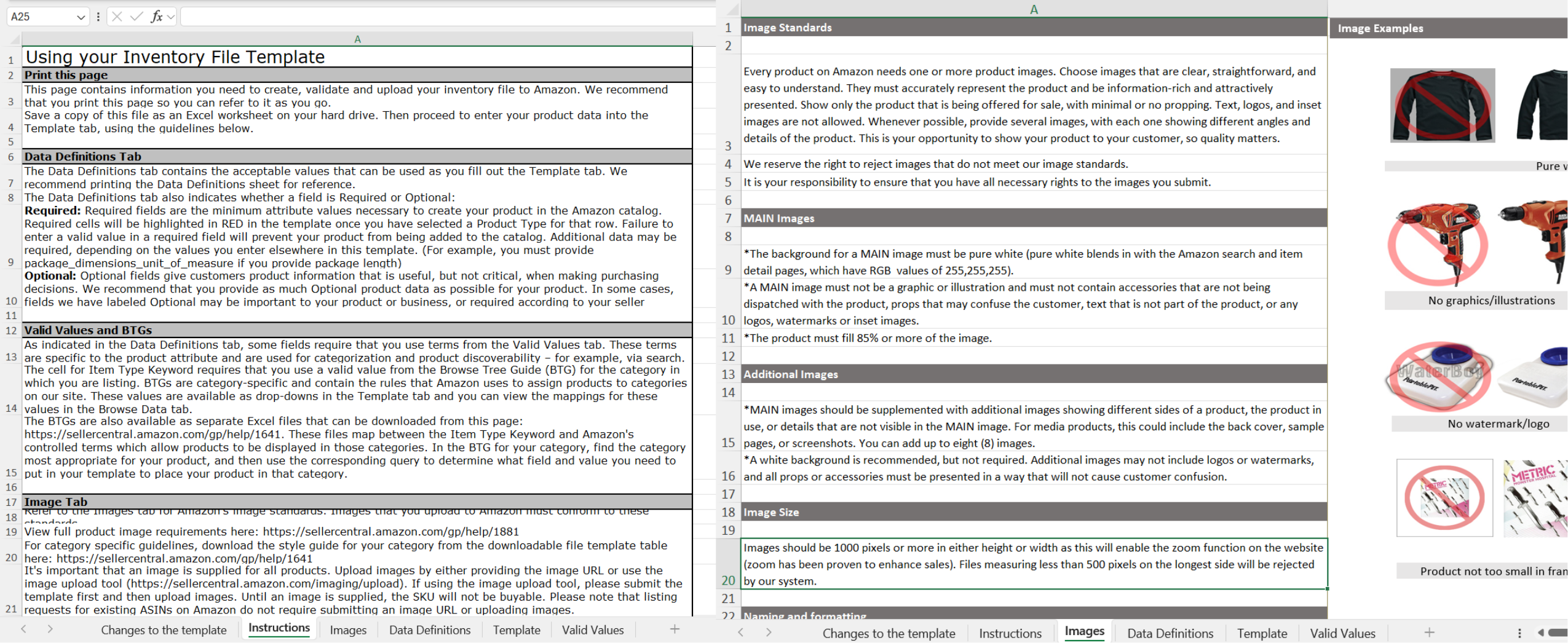
.png)
.svg)
Before you can use the Category Listing Report to troubleshoot or update your catalog, you must first enable access and download a fresh file from Amazon Seller Central. This report is not available by default, and working without it often leads sellers to rely on outdated templates or incomplete data.
Once approved, it appears for 7 days in your Inventory Reports.
.svg)
The Category Listing Report is often misused because sellers treat it like a basic spreadsheet. It isn’t. The CLR is an operational blueprint for how Amazon currently understands and enforces your catalog, and every change you make through it directly affects how listings behave across the marketplace.
This section breaks down the exact step-by-step process for using the Category Listing Report safely and intentionally. The goal is not to edit everything, but to diagnose issues first, prepare the file correctly, apply only the necessary changes, and upload them in a way that aligns with Amazon’s bulk update rules. Skipping steps or rushing edits is one of the fastest ways to cause variation breaks, attribute loss, or long-term catalog instability.
Follow the sequence below in order. Each step builds on the previous one to ensure your updates solve the problem without creating new ones:
Before touching anything, scan the report for:
.svg)
Strong rule of thumb: Only edit the columns directly associated with the problem you're fixing, not the entire catalog.
This is where most catalog damage happens. Amazon’s bulk update logic is strict, and small mistakes cascade quickly.
You should preserve feed_product_type exactly as-is, use PartialUpdate unless you intend to replace the entire listing, and ensure parent SKUs never contain price or quantity. Child SKUs must always include complete and consistent variation attributes. Attributes should never be deleted unless Amazon explicitly instructs you to do so.
This is where most catalog damage happens. Amazon’s bulk update logic is strict, and small mistakes cascade quickly. Before uploading your file, make sure you follow these rules:
feed_product_type exactly as-is.svg)
Understanding how Amazon handles Update, Partial Update, and Delete operations is essential before making changes through the Category Listing Report (CLR). Each action controls how Amazon interprets your upload, and using the wrong one can unintentionally overwrite or break your catalog.
This section explains when and how to use each method so you protect your data, avoid unexpected attribute resets, and make precise changes to your listings.
A full update overwrites every field Amazon has stored for that SKU. It is the strongest type of catalog update because it resets your listing to exactly what is in your file.
When to Use a Full Update:
It’s appropriate only for major rebuilds, such as rewriting content, replacing image sets, fixing deep attribute corruption, or standardizing a category at scale. This is the method OSS uses when repairing heavily damaged listings.
How to Use the CLR for a Full Update:
update_delete to Update or leave as default if the template uses Full Update logic.
.svg)
A partial update lets you change only the fields you explicitly edit, leaving all other attributes unchanged. This makes it the safest and most controlled way to adjust a listing when you don’t want to risk overwriting healthy data.
Partial updates are best used for targeted changes. Common examples include adjusting prices or inventory quantities, refining a single attribute such as a color name or material value, correcting a specific bullet point, resolving compliance-related fields without affecting content, or reversing minor catalog overwrites caused by other sellers. In all of these cases, the goal is precision rather than reconstruction.
To perform a partial update using the Category Listing Report, first download a fresh CLR to preserve your current catalog state. Always work from a copy of that file, never the original export. Edit only the specific fields that need to change and leave all other columns completely blank, Amazon will ignore blank fields during a partial update.
Once your edits are complete, set the update_delete field to PartialUpdate and upload the file back through Seller Central.
.svg)
A delete action removes a listing from your active catalog by withdrawing your contribution, but it does not permanently erase the product from Amazon’s system. This distinction is important, as deletes are often used strategically rather than as a final removal.
Delete actions are commonly used when discontinuing a product, removing bad or duplicate listings, clearing catalog clutter, closing child SKUs before rebuilding parentage, or resolving complex variation errors, especially in large catalogs where surgical cleanup is required.
When using the Category Listing Report to delete a listing, download a fresh CLR and create a working copy. Locate the SKU you want to remove, set the update_delete field to Delete, and upload the file through Seller Central. The SKU will be marked inactive once the file processes successfully.
One critical rule to remember is sequencing. Deleting a parent SKU while child SKUs still exist can cause variation corruption and long-term catalog instability. Always delete child SKUs first, then remove the parent.
.svg)
The Category Listing Report is most valuable when catalog issues can’t be reliably diagnosed or fixed through Seller Central’s interface. It becomes indispensable for rebuilding broken variations, correcting backend attributes, reversing Amazon overwrites, performing large-scale updates, and auditing your catalog before high-traffic or peak periods.
In these scenarios, one-by-one edits are not only inefficient, they’re risky. The CLR provides visibility into backend data that the UI doesn’t expose, allowing you to identify structural issues, apply consistent changes at scale, and verify how Amazon is actually interpreting your listings.
If a catalog problem affects multiple SKUs, involves parent-child relationships, or keeps reappearing after manual edits, the Category Listing Report is almost always the correct starting point.
External Resources:
Related: Fix Suppressed Listings
Even when used correctly, Amazon’s catalog can behave unpredictably. Small inconsistencies in backend data can trigger variation splits, parent rejections, or stalled updates. Most of these issues aren’t random, they’re the result of how Amazon validates and enforces catalog rules behind the scenes.
Below are some of the most common Category Listing Report–related errors and how to fix them:
Problem: Your parent-child variation family becomes disconnected or some child SKUs stop appearing under the parent listing after you upload your inventory file.
Solution: Review every variation attribute across your child SKUs and make sure the values are 100% identical. Even minor inconsistencies—such as using "Blue" for one SKU and "Navy Blue" for another—can break the variation relationship. Amazon requires variation attributes to match exactly.
Problem: Amazon rejects the parentage, preventing your variation family from being created.
Solution: Verify that your upload file includes the parent SKU and all associated child SKUs. Remember that the parent SKU should not contain inventory-specific information such as price or quantity. Parent listings exist only to group the child products together.
Problem: Your updates appear to upload successfully, but the changes never show on the live listing.
Solution: Instead of submitting a partial update, use the Category Listing Report and perform a Full Update. This method is much more effective when correcting structural issues, repairing variation relationships, or updating backend product attributes.
.svg)
Mastering the Amazon Category Listing Report is one of the most impactful skills a catalog manager or seller can develop. It eliminates guesswork, reduces trial-and-error updates, and gives you direct visibility into how Amazon actually interprets and enforces your listing data. The CLR isn’t just a file, it’s the control layer behind your catalog.
When variation issues, attribute conflicts, or suppressed listings keep reappearing, the Category Listing Report allows you to diagnose and fix problems at the source, not just treat symptoms. Used correctly, it gives you precision, consistency, and confidence when making catalog changes.
Need help fixing or optimizing your catalog? Book a call with us at Online Seller Solutions for a Listing Optimization Diagnostic.
We are your Amazon experts who provide comprehensive solutions and guidance to drive e-commerce businesses closer to success.
%20Cover%20Pic%20Template%20(1)%20(1).png)